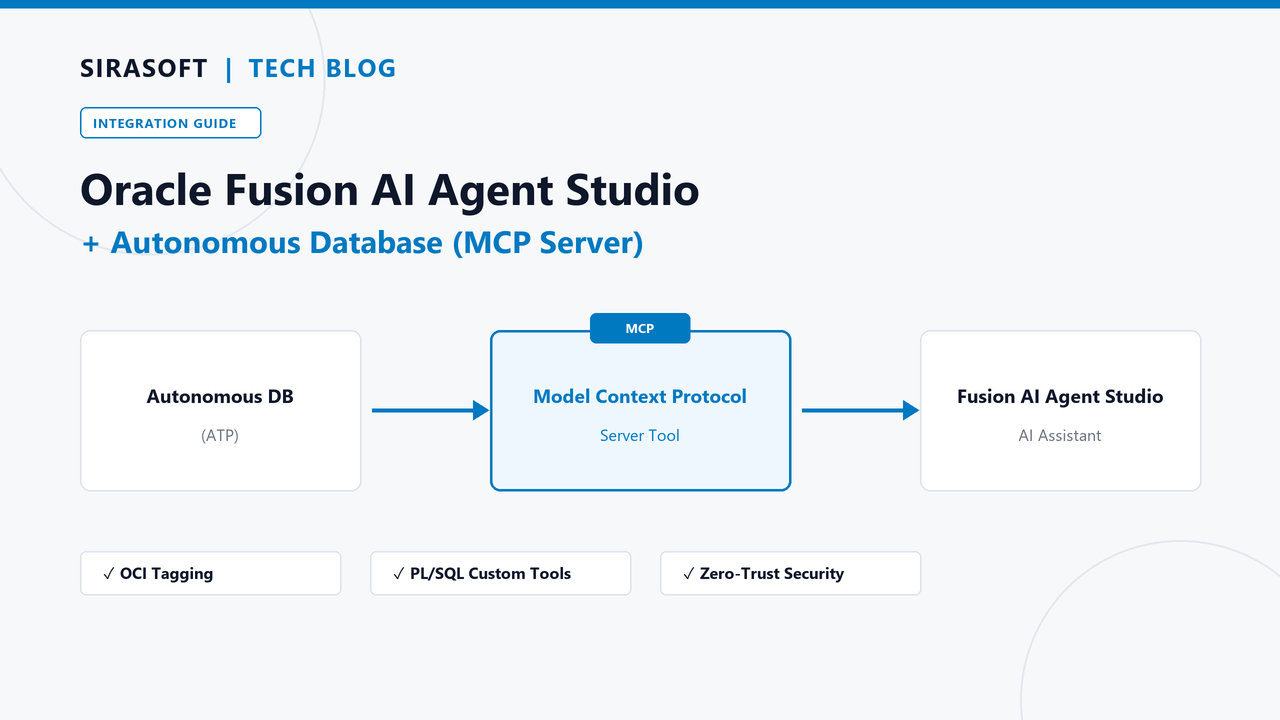
Connecting Oracle Fusion AI Agent Studio to an Autonomous Database using MCP Server
A simple, step-by-step guide to exposing a custom database tool from Oracle Autonomous Database (ATP) and connecting it to Fusion AI Agent Studio using the Model Context Protocol (MCP) server.
What We Are Building
We will create one simple tool inside our Autonomous Database that can fetch employee records for a given department. We will then expose this tool through the built-in MCP Server, and finally connect it to Fusion AI Agent Studio so an AI agent can call it directly.
Step 1: Enable the MCP Server
Open the OCI Console and go to your Autonomous Database instance.
Open the Tags section of the database.
Add a free-form tag with the following details:
| Namespace | None |
| Key | adb$feature |
| Value | {"name":"mcp_server","enable":true} |
Step 2: Create a Simple PL/SQL Function
This function takes a department ID and returns the matching employees as JSON. It only accepts a department ID as input — it does not accept free-form SQL, which keeps the tool safe to expose.
Step 3: Register the Function as an MCP Tool
Use DBMS_CLOUD_AI_AGENT.CREATE_TOOL to make this function discoverable by MCP
clients, such as Fusion AI Agent Studio.
Step 4: Get the MCP Connection Details
Every Autonomous Database with the MCP Server enabled gets its own endpoint. You will need three things: the MCP instance URL, the token URL, and your database credentials.
| Tool Type | MCP |
| MCP Instance URL | https://dataaccess.adb.{region}.oraclecloudapps.com/adb/mcp/v1/databases/{database-ocid} |
| Token URL | https://dataaccess.adb.{region}.oraclecloudapps.com/adb/mcp/v1/databases/{database-ocid}/token |
| Transport Type | Streamable HTTP |
The client credentials connection configuration takes this shape:
Replace {region} with your database’s region identifier (for example,
ap-hyderabad-1), and {database-ocid} with your database’s OCID. Both
values are visible on the database details page in the OCI Console.
Step 5: Connect Fusion AI Agent Studio to the MCP Server
In Fusion AI Agent Studio, create a new connection and choose Tool Type: MCP.
Enter the MCP Instance URL and Token URL from Step 4.
Enter the client credentials configuration with your database username and password.
Set the Transport Type to Streamable HTTP.
Save the connection, then choose Check for Available Tools.
Fusion AI Agent Studio will now list every tool created using
DBMS_CLOUD_AI_AGENT.CREATE_TOOL — including the
GET_EMPLOYEE_HEADCOUNT_TOOL we created in Step 3.
Step 6: Add the Tool to an Agent and Test It
Select the tool from the list. You can preview its name, its schema, and the exact input it expects.
Add the tool to your agent.
The agent can now call this tool whenever it needs employee data for a department,
passing DEPT_ID as the input.
Why This Approach Is Safer
It can be tempting to write one generic tool that accepts any SQL query and just runs it. This is easy to build, but it is not recommended for real use — it lets the connected AI agent (or anyone calling the tool) run any SELECT statement against the database.
Instead, keep each tool narrow: hard-code the SQL inside the function, and only accept the specific parameters the tool actually needs (like a department ID). This way, the agent can only ever do exactly what the tool was built for.
Summary
- Enable the MCP Server on your Autonomous Database using a free-form tag
- Write a small PL/SQL function with fixed, specific SQL — not free-form queries
- Register it as a tool with
DBMS_CLOUD_AI_AGENT.CREATE_TOOL - Get the MCP instance URL, token URL, and credentials for your database
- Connect Fusion AI Agent Studio using these details, then add the tool to your agent
Written for the Sirasoft technical team as a quick-reference guide for MCP + Autonomous Database integrations. If you are still getting your bearings on the Agent Studio terminology, start with our companion post on Oracle Fusion AI Agent Studio: Key Terms, Simply Explained.
Back to All Blogs